Configuring Email Properties
The Email page of the GNS Configuration Tester (GnsConfig) defines parameters to determine the type of authorization used for sending and retrieving email from the GNS (Basic (SMTP/POP) or OAuth2 (Graph API)), configure necessary values and authentication credentials, and a test feature to connect and interact with the specified servers. By saving the configuration on this page, you can write keyword values back to the GNS server configuration file (Gns.cfg). The GnsConfig also automatically encrypts any username/passwords and the client ID/Client secret (if using OAuth2).
See the following sections of this topic:
- Sample GNSConfig and Gns.cfg
- Email Credentials for Basic Authorization
- Configure Email Keywords
- GNS Configuration Tester Email Properties
- Configuring Microsoft 365 to work with Graph API
Sample GNSConfig and Gns.cfg
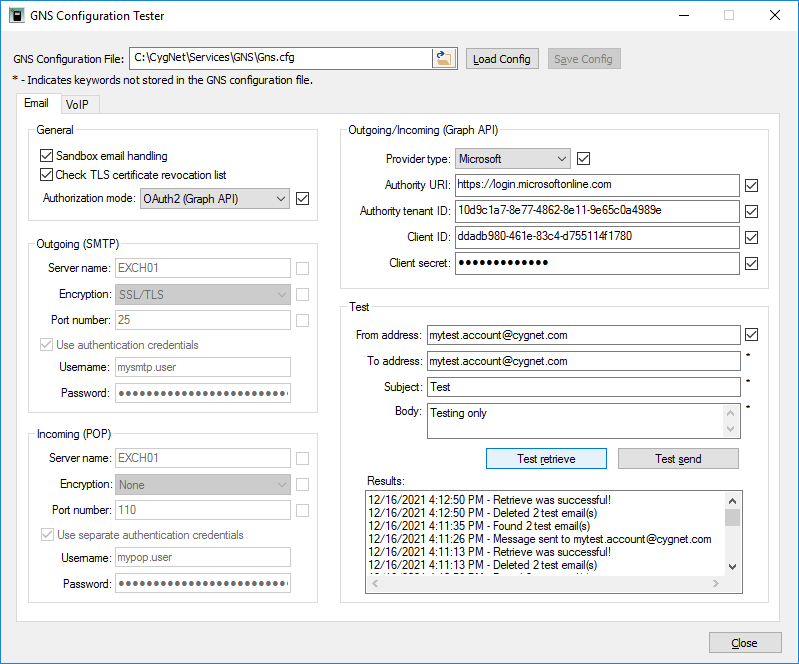
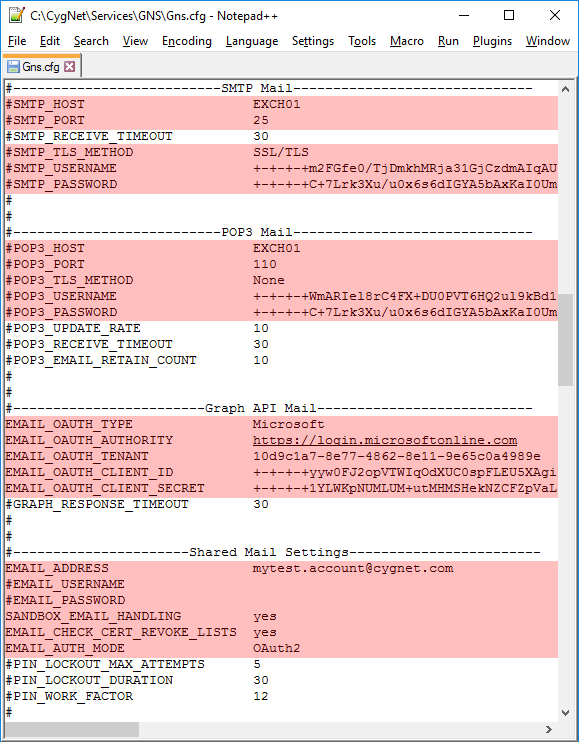
The following is an example of the Email page of the GNS Configuration Tester dialog box along with the corresponding Gns.cfg keyword settings:
|
|
|
|
| Click the thumbnails to see the Email page of the GNS Configuration Tester with corresponding keywords in the GNS Configuration File |
||

Email Credentials for Basic Authorization
There are six possible keywords available to configure basic email authentication credentials in the Gns.cfg, all of which can be configured (and encrypted) with the GnsConfig.
- EMAIL_USERNAME and EMAIL_PASSWORD — These keywords are shared by both the SMTP and POP3 servers. When credentials are specified only in the SMTP section of GnsConfig, the credentials are saved to these keywords.
- SMTP_USERNAME and SMTP_PASSWORD — These keywords are used only by the SMTP server for sending outgoing email messages.
- POP3_USERNAME and POP3_PASSWORD — If separate credentials are required for incoming email, these keywords are used only by the POP3 server for receiving incoming acknowledgment reply email messages.
When loading keywords from the Gns.cfg, the GnsConfig will initially populate both the SMTP and POP3 keywords using the shared EMAIL keywords. It will then override with the SMTP and POP3 keywords if they are specified. When the configuration is saved, the GnsConfig will store the new settings to the separate SMTP and POP3 keywords.
Important: On startup, the GNS will fail to start if the EMAIL_USERNAME and EMAIL_PASSWORD keywords are configured, and the SMTP keywords OR the POP keywords are also configured. CygNet Software recommends using the GnsConfig to change these keywords.
Using separate authentication credentials
If you need to specify separate authentication credentials for the outgoing and incoming servers, note the following:
- If Use separate authentication credentials in the POP section of the GnsConfig is checked, the GnsConfig will save the specified SMTP credentials to the SMTP_USERNAME and SMTP_PASSWORD keywords and the specified POP credentials to the POP3_USERNAME and POP3_PASSWORD keywords
- If Use separate authentication credentials in the POP section of the GnsConfig is not checked, the GnsConfig will save the credentials specified in the SMTP section to the EMAIL_USERNAME and EMAIL_PASSWORD keywords.
Configure Email Keywords
To Configure and Test the Email Properties in the GnsConfig
- Start the GNS Configuration Tester. If this is the first time you have used this utility, the GNS Configuration File box will be empty.
- Type a valid file path to the Gns.cfg file in the text box, then click Load Config. If the file path does not contain an existing file, then the Load Config button will be disabled. The relevant parameters from the Gns.cfg file will be loaded into the GnsConfig.
-OR-
- Click the folder icon to browse to the directory that contains the Gns.cfg file, select the file, and click Open. This will automatically load the relevant parameters from the Gns.cfg file into the GnsConfig.
- Type a valid file path to the Gns.cfg file in the text box, then click Load Config. If the file path does not contain an existing file, then the Load Config button will be disabled. The relevant parameters from the Gns.cfg file will be loaded into the GnsConfig.
- Click Sandbox email handling to isolate email operations (parsing, acknowledgment, etc.) from the GNS to protect the service from malicious emails, unexpected errors, etc.
SANDBOX_EMAIL_HANDLING forces the sandboxing of the SMTP and POP email engine. The default setting is true. Sandboxing email processing moves email operations (parsing, acknowledgment, etc.) out of the GNS to protect the service from malicious emails, unexpected errors, etc. It also removes most user groups and privileges to further isolate the service and the service’s data.
Depending on the configuration of your Windows security groups you may need to opt out of email sandboxing.
Sandboxing is required for notification plugins.
- Click Check TLS certificate revocation list to check the TLS certificate revocation list to determine if any HTTPS certificates have been revoked and are no longer valid.
EMAIL_CHECK_CERT_REVOKE_LISTS indicates whether to check the TLS certificate revocation list to determine if any HTTPS certificates have been revoked and are no longer valid. The default value is yes.
- Select the Authorization mode you want to use for sending and receiving GNS notifications: Basic (SMTP/POP3) or OAuth2 (Graph API). Depending on your choice the appropriate section of the GnsConfig will become enabled.
EMAIL_AUTH_MODE specifies the user authentication mode used by the GNS to connect to an email server. Options include:
- Basic (SMTP/POP3) — Basic Authentication is the legacy option to connect to a hosted email service. Basic Authentication means that the client application passes the username and password with every request. Basic (SMTP/POP3) is the default value, and when selected, the Outgoing/Incoming (Graph API) fields are disabled.
- OAuth2 (Graph API) — Select this option to use the OAuth 2.0 protocol for authorization via the Microsoft Graph API. Microsoft uses the Graph API to enable authorization access to Microsoft Cloud service resources, including Microsoft 365 and Azure Active Directory. The OAuth2 protocol is a far more secure method for accessing and sharing information. The Graph API is a built-in library referenced by the CygNet email engine. When OAuth2 (Graph API) is selected, the Outgoing (SMTP) and Incoming (POP) fields are disabled.
- To configure Basic (SMTP/POP3) authorization:
- In the Outgoing (SMTP) area click the check boxes next to the items you want to edit:
- Type the SMTP Server name — SMTP_HOST specifies the SMTP server host name or IP address. If you are not sure of this properties, check with your network administrator.
- Select the desired Encryption method —
SMTP_TLS_METHOD specifies the encryption method used for outgoing SMTP server sending email notifications.
There are three options; specify one or select one from the drop-down menu, if using the GNS Configuration Tester:
Method Description Preferred Port NONE
Clear text, no encryption.
110
SSL/TLS
The entire transaction is encrypted from beginning to end. This is the default option.
995
STARTTLS
The initial connection is not encrypted, but after connection the remainder of the transaction is encrypted.
110
The decision about which port to use and which encryption method to choose should be made by your network administrator.
- Type the SMTP server's Port number — SMTP_PORT specifies the port number used by the SMTP server. Usually port 25. If you are not sure of this property, check with your network administrator.
- Click Use authentication credentials to configure the SMTP authentication credentials. See Email Credentials for Basic Authorization for information about how the basic authorization keywords are used.
- Type the SMTP server (or shared) Username — SMTP_USERNAME specifies the username for the SMTP server for sending outgoing email messages. See Email Credentials for Basic Authorization for information about how the basic authorization keywords are used.
- Type the SMTP server (or shared) Password — SMTP_PASSWORD specifies the user password for the SMTP server for sending outgoing email messages. See Email Credentials for Basic Authorization for information about how the basic authorization keywords are used. This keyword is encrypted with the common encryption key file if ENCRYPTION_KEY_FILE is enabled. Once encrypted, password keywords for the email server cannot be decrypted.
- In the Incoming (POP) area click the check boxes next to the items you want to edit:
- Type the POP Server name — POP3_HOST specifies the POP server host name or IP address. If you are not sure of this properties, check with your network administrator.
- Select the desired Encryption method —
POP3_TLS_METHOD specifies the encryption method used for the incoming POP server receiving email responses.
There are three options; specify one or select one from the drop-down menu, if using the GNS Configuration Tester:
Method Description Preferred Port NONE
Clear text, no encryption.
110
SSL/TLS
The entire transaction is encrypted from beginning to end. This is the default option.
995
STARTTLS
The initial connection is not encrypted, but after connection the remainder of the transaction is encrypted.
110
The decision about which port to use and which encryption method to choose should be made by your network administrator.
POP3 servers usually listen on well-known port 110. If using NONE or STARTTLS encryption use port 110; otherwise use port 995.
- Type the POP server's Port number — POP3_PORT specifies the port number used by the POP server receiving email responses. POP3 servers usually listens on the well-known port 110. If you are not sure of this property, check with your network administrator.
- Click Use separate authentication credentials to configure the separate POP server credentials. See Email Credential for Basic Authorization above for information.
- Type the POP server Username — POP3_USERNAME specifies the username for the POP server for receiving incoming acknowledgment reply email messages. See Email Credentials for Basic Authorization for information about how the basic authorization keywords are used.
- Type the POP server Password — POP3_PASSWORD specifies the user password for the POP server for receiving incoming acknowledgment reply email messages. See Email Credentials for Basic Authorization for information about how the basic authorization keywords are used. This keyword is encrypted with the common encryption key file if ENCRYPTION_KEY_FILE is enabled. Once encrypted, password keywords for the email server cannot be decrypted.
- In the Outgoing (SMTP) area click the check boxes next to the items you want to edit:
- To configure OAuth2 (Graph API) authorization:
- Select a Provider type — EMAIL_OAUTH_TYPE specifies the provider for the OAuth2 authorization mode. If you are using OAuth2 authentication, the only provider type is Microsoft. Microsoft uses the Graph API to enable authorization access to Microsoft Cloud service resources, including Microsoft 365 and Azure Active Directory.
- Type an Authority URI URL for OAuth2 authentication — EMAIL_OAUTH_AUTHORITY specifies the Authority URI for the OAuth2 authority. The authority URI is a URL that indicates a directory that the Microsoft Authentication Library (MSAL) can request tokens from.
- Type an Authority tenant ID for OAuth2 authentication — EMAIL_OAUTH_TENANT specifies the Authority tenant ID for the OAuth2 authority. The tenant ID is a globally unique identifier (GUID) associated with the Microsoft Azure Active Directory (Azure AD) instance for your organization.
- Type a Client ID — EMAIL_OAUTH_CLIENT_ID specifies the Client ID assigned by the OAuth2 authority to the GNS. The client ID is created when you register the GNS with the Microsoft Azure AD portal.
- Type a Client secret — EMAIL_OAUTH_CLIENT_SECRET specifies the Client secret known only to the OAuth2 authority and the GNS. The client secret is created when you register the GNS with the Microsoft Azure AD portal.
- Test the email settings. In the Test area:
- Click the check box next to the From address. Type the From address. — EMAIL_ADDRESS specifies the return (from) address for acknowledgment reply emails, such as name@company.com. This is the return address that will show on the outgoing email messages. If using OAuth 2.0 this must be a user on Office 365 with a Business Standard license.
- The next three fields are for testing purposes only, and are not saved to the Gns.cfg file:
- In the To address box, type an email address for testing retrieve and testing send.
- Include a subject line in the Subject box.
- Type a message in the Body box.
- Click Test retrieve to retrieve a test message from the POP server. You must type a valid email address on the POP server in the From address field to successfully test the retrieve. The Results area will show if the test succeeded or failed.
- If the test is successful, the test email will be retrieved immediately and the Results box will show the date and time and "POP retrieve was successful"
- If the test failed, review the message in the Results box.
- Verify the server information and authentication credential.
- Click Test send to send a test message from the SMTP server. You must type a valid email address in the To address field to successfully test the send. The Results area will show if the test succeeded or failed.
- If the test is successful, the test email will be sent immediately and the Results box will show the date and time and "Message sent to…"
- If the test failed, review the message in the Results box.
- Verify the server information and authentication credentials. Also verify that the From address is not blocked by a spam blocker or other network tool.
- Click Save Config to save the changes to the Gns.cfg file.
- Click Close to exit the GnsConfig.
- Go to CygNet Explorer and stop and restart the GNS for the changes to become effective.
- The next time you use the GnsConfig the edited Gns.cfg settings will be automatically loaded.
GNS Configuration Tester Email Properties
The following table lists the fields on the Email page of the GNS Configuration Tester and the corresponding keywords in the Gns.cfg file (when applicable).
| Field | Description | Corresponding Keyword in the Gns.cfg File | ||||||||||||
|---|---|---|---|---|---|---|---|---|---|---|---|---|---|---|
|
GNS configuration file |
The path to the GNS configuration file (Gns.cfg). Click the folder icon to browse to the file on the CygNet host. The relevant parameters from the Gns.cfg file will be loaded into the GnsConfig.
Note: Some configuration options on the GnsConfig are not saved to the GNS configuration file. This is indicated with an asterisk next to the option. |
N/A |
||||||||||||
| General |
|
|
||||||||||||
|
Sandbox email handling |
SANDBOX_EMAIL_HANDLING forces the sandboxing of the SMTP and POP email engine. The default setting is true. Sandboxing email processing moves email operations (parsing, acknowledgment, etc.) out of the GNS to protect the service from malicious emails, unexpected errors, etc. It also removes most user groups and privileges to further isolate the service and the service’s data. Depending on the configuration of your Windows security groups you may need to opt out of email sandboxing. Sandboxing is required for notification plugins. |
SANDBOX_EMAIL_HANDLING |
||||||||||||
|
Check TLS certificate revocation list |
EMAIL_CHECK_CERT_REVOKE_LISTS indicates whether to check the TLS certificate revocation list to determine if any HTTPS certificates have been revoked and are no longer valid. The default value is yes. |
EMAIL_CHECK_CERT_REVOKE_LISTS |
||||||||||||
|
Authorization mode |
Click the check box next to the property to edit this configuration and change the keyword in the Gns.cfg. Select one of the options from the drop-down menu. EMAIL_AUTH_MODE specifies the user authentication mode used by the GNS to connect to an email server. Options include:
|
EMAIL_AUTH_MODE |
||||||||||||
| Outgoing (SMTP)
Click the check box next to each property to edit this configuration and change the keyword in the Gns.cfg. |
||||||||||||||
|
Server name |
SMTP_HOST specifies the SMTP server host name or IP address. |
SMTP_HOST |
||||||||||||
|
Encryption |
SMTP_TLS_METHOD specifies the encryption method used for outgoing SMTP server sending email notifications. There are three options; specify one or select one from the drop-down menu, if using the GNS Configuration Tester:
The decision about which port to use and which encryption method to choose should be made by your network administrator. |
SMTP_TLS_METHOD |
||||||||||||
|
Port number |
SMTP_PORT specifies the port number used by the SMTP server. Usually port 25. |
SMTP_PORT |
||||||||||||
|
Use authentication credentials |
Click to configure SMTP authentication credentials. If checked, the GnsConfig will save the specified SMTP credentials to the EMAIL_USERNAME and EMAIL_PASSWORD keywords. See Email Credentials for Basic Authorization for information about how the basic authorization keywords are used. |
N/A |
||||||||||||
|
Username |
SMTP_USERNAME specifies the username for the SMTP server for sending outgoing email messages. See Email Credentials for Basic Authorization for information about how the basic authorization keywords are used. This keyword is encrypted with the common encryption key file if ENCRYPTION_KEY_FILE is enabled. |
SMTP_USERNAME |
||||||||||||
|
Password |
SMTP_PASSWORD specifies the user password for the SMTP server for sending outgoing email messages. See Email Credentials for Basic Authorization for information about how the basic authorization keywords are used. This keyword is encrypted with the common encryption key file if ENCRYPTION_KEY_FILE is enabled. Once encrypted, password keywords for the email server cannot be decrypted. |
SMTP_PASSWORD |
||||||||||||
| Incoming (POP)
Click the check box next to each property to edit this configuration and change the keyword in the Gns.cfg. |
||||||||||||||
|
Server name |
POP3_HOST specifies the POP server host name or IP address. Note: You can disable email and SMS acknowledgment by removing the POP Server name and saving the configuration. See Acknowledging Notifications Via Email. |
POP3_HOST |
||||||||||||
|
Encryption |
POP3_TLS_METHOD specifies the encryption method used for the incoming POP server receiving email responses. There are three options; specify one or select one from the drop-down menu, if using the GNS Configuration Tester:
The decision about which port to use and which encryption method to choose should be made by your network administrator. POP3 servers usually listen on well-known port 110. If using NONE or STARTTLS encryption use port 110; otherwise use port 995. |
POP3_TLS_METHOD |
||||||||||||
|
Port number |
POP3_PORT specifies the port number used by the POP server receiving email responses. POP3 servers usually listens on the well-known port 110. |
POP3_PORT |
||||||||||||
|
Click to configure separate authentication credentials for the incoming POP server. If checked, the GnsConfig will save the specified SMTP credentials to the SMTP_USERNAME and SMTP_PASSWORD keywords and the specified POP credentials to the POP3_USERNAME and POP3_PASSWORD keywords. See Email Credentials for Basic Authorization for information about how the basic authorization keywords are used. |
N/A |
|||||||||||||
|
Username |
POP3_USERNAME specifies the username for the POP server for receiving incoming acknowledgment reply email messages. See Email Credentials for Basic Authorization for information about how the basic authorization keywords are used. This keyword is encrypted with the common encryption key file if ENCRYPTION_KEY_FILE is enabled. |
POP3_USERNAME |
||||||||||||
|
Password |
POP3_PASSWORD specifies the user password for the POP server for receiving incoming acknowledgment reply email messages. See Email Credentials for Basic Authorization for information about how the basic authorization keywords are used. This keyword is encrypted with the common encryption key file if ENCRYPTION_KEY_FILE is enabled. Once encrypted, password keywords for the email server cannot be decrypted. |
POP3_PASSWORD |
||||||||||||
| Outgoing/Incoming (Graph API)
Click the check box next to each property to edit this configuration and change the keyword in the Gns.cfg. |
||||||||||||||
|
Provider type |
EMAIL_OAUTH_TYPE specifies the provider for the OAuth2 authorization mode. If you are using OAuth2 authentication, the only provider type is Microsoft. Microsoft uses the Graph API to enable authorization access to Microsoft Cloud service resources, including Microsoft 365 and Azure Active Directory. |
EMAIL_OAUTH_TYPE |
||||||||||||
|
Authority URI |
EMAIL_OAUTH_AUTHORITY specifies the Authority URI for the OAuth2 authority. The authority URI is a URL that indicates a directory that the Microsoft Authentication Library (MSAL) can request tokens from. |
EMAIL_OAUTH_AUTHORITY |
||||||||||||
|
Authority tenant ID |
EMAIL_OAUTH_TENANT specifies the Authority tenant ID for the OAuth2 authority. The tenant ID is a globally unique identifier (GUID) associated with the Microsoft Azure Active Directory (Azure AD) instance for your organization. |
EMAIL_OAUTH_TENANT |
||||||||||||
|
Client ID |
EMAIL_OAUTH_CLIENT_ID specifies the Client ID assigned by the OAuth2 authority to the GNS. The client ID is created when you register the GNS with the Microsoft Azure AD portal. This keyword is encrypted with the common encryption key file if ENCRYPTION_KEY_FILE is enabled. |
EMAIL_OAUTH_CLIENT_ID |
||||||||||||
|
Client secret |
EMAIL_OAUTH_CLIENT_SECRET specifies the Client secret known only to the OAuth2 authority and the GNS. The client secret is created when you register the GNS with the Microsoft Azure AD portal. This keyword is encrypted with the common encryption key file if ENCRYPTION_KEY_FILE is enabled. |
EMAIL_OAUTH_CLIENT_SECRET |
||||||||||||
| Test | ||||||||||||||
|
From address |
EMAIL_ADDRESS specifies the return (from) address for acknowledgment reply emails, such as name@company.com. This is the return address that will show on the outgoing email messages. If using OAuth 2.0 this must be a user on Office 365 with a Business Standard license. Click the check box next to the property to edit the configuration (and change the keyword in the (Gns.cfg). |
EMAIL_ADDRESS |
||||||||||||
|
To address |
Specifies the address where to send a test message. Must be populated to enable the Test send button. |
N/A |
||||||||||||
|
Subject |
Specifies a subject of the response message. |
N/A |
||||||||||||
|
Body |
Specifies the content of the test message. |
N/A |
||||||||||||
|
Test retrieve |
Click to send and retrieve a test message from the configured email server using the From address. |
N/A |
||||||||||||
|
Test send |
Click to send a test message from the configured email server to the email address specified in To address. |
N/A |
||||||||||||
|
Results |
Displays the success or failure of the Test retrieve or Test send, including a date and timestamp. |
N/A |
||||||||||||
Configuring Microsoft 365 to work with Graph API
See Configuring Microsoft 365 to work with Graph API for assistance on how to configure Azure Active Directory, Microsoft 365 server, and CygNet’s GnsConfig utility to work together to send and receive email messages using Graph API.

